I have tried quite a few Android launchers over the years, and most of them eventually start feeling the same. You get a grid of icons, a few home-screen pages, widgets, an app drawer, and some customization options. They can look good, but after a while, the experience becomes predictable.
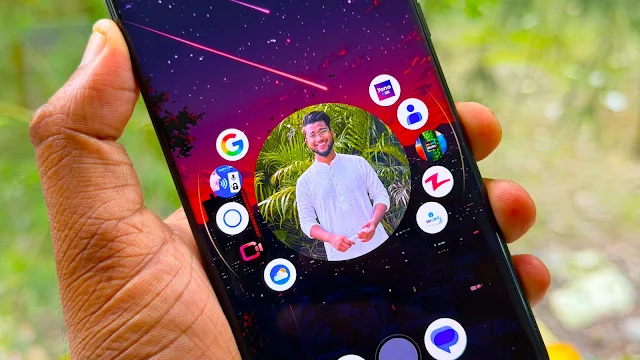
That is what makes Nocebo Launcher interesting. Instead of simply giving Android another icon grid, it completely changes the way the home screen works. Its main attraction is a rotating, spinner-style layout that makes navigating between apps feel very different from a normal launcher.
What Is Nocebo Launcher?
Nocebo Launcher is a third-party Android launcher designed to replace the standard home-screen experience. The biggest difference is its unusual spinning layout.
Rather than keeping every app locked into traditional rows and columns, Nocebo uses a dynamic interface where apps can be arranged around a rotating center. Once you get used to the movement, it feels more like interacting with a physical wheel than using a normal Android home screen.
The launcher is currently available through Google Play and has been receiving regular updates.
The Spinning Home Screen Is the Main Attraction
The first thing you notice after setting up Nocebo is the spinner.
You can move through your apps by interacting with the rotating layout instead of repeatedly swiping across several home-screen pages. This is especially interesting on larger phones because frequently used apps can remain within easy reach.
At first, I would recommend keeping only your most-used apps on the main layout. Trying to organize everything immediately can make the interface feel more complicated than it needs to be.
Once you become comfortable with the spinner, you can gradually adjust the layout according to your routine.
Customize the Center Sticker
One of my favorite ideas in Nocebo Launcher is the customizable center sticker.
The middle of the interface isn’t just an empty space. You can personalize it with your own visual element, giving the launcher a much more personal appearance.
This is useful if you like creating custom Android setups. Instead of simply changing your wallpaper, you can make the center of the launcher part of your overall theme.
The app also provides customization options for the appearance and behavior of the interface.
How to Set Up Nocebo Launcher
Getting started is fairly straightforward:
- Install Nocebo Launcher from Google Play.
- Open the app and follow the initial setup.
- Set it as your default launcher when Android asks.
- Add your frequently used applications.
- Organize other apps into folders.
- Customize the center sticker.
- Adjust the appearance and animation settings.
- Add widgets if you need them.
Don’t try to customize every setting on the first day. That’s one mistake I would avoid. Spend some time using the default setup first, then change the things that actually bother you.
What Makes It Different?
The biggest advantage of Nocebo Launcher is that it doesn’t feel like another copy of the standard Android interface.
There are plenty of launchers that focus mainly on icon packs, colors, or minimal layouts. Nocebo changes the actual interaction model.
It also offers customization for animations and the launcher interface, allowing users to create setups that feel more personal rather than simply applying a new theme.
The developer has also continued improving the launcher through updates, including fixes and performance-related improvements.
A Few Things to Keep in Mind
The unusual design can also be its biggest learning curve.
If you’ve used a traditional Android launcher for years, the spinning interface may initially feel strange. Your muscle memory expects icons to be in familiar positions, so finding an app can take a little longer at first.
Another thing worth remembering is that launcher performance can vary between phones. Android versions, device hardware, animations, and manufacturer software can all affect how a third-party launcher feels.
Nocebo also uses optional permissions for certain functions. Google Play explains that AccessibilityService can be used for optional system actions, while Device Administrator can be used for screen-lock gestures. These features are optional rather than required for everyone.
Common Mistakes to Avoid
The biggest mistake is over-customizing immediately.
Adding too many apps, widgets, folders, animations, and visual effects can make even a well-designed launcher feel messy.
Start simple. Put your most-used apps where they are easiest to reach, choose a clean wallpaper, and use only the features you actually need.
Also, don’t judge the launcher after five minutes. The spinner is different enough that it takes some time to become natural.
Final Thoughts
Nocebo Launcher is aimed at Android users who want something genuinely different from the usual home-screen experience.
Its rotating layout, customizable center sticker, app organization, widgets, and configurable interface give you plenty of room to create your own setup.
It may not be the right choice for someone who wants a completely traditional Android layout, but if you’re bored with the same rows of icons and want to experiment with something more interactive, Nocebo Launcher is certainly an interesting launcher to try.